
|
|
How to Add the User Login Audit Report
Prerequisite: The UserLogInAuditReport.jrxml should have been uploaded in the Jasper Server.
Follow the steps below to add the User Login Audit Report in the Manage Standard Reports screen.
-
In PowerForm web, click the
 button, and select Manage Standard Reports from the menu list.
 -
Click the + Add Report button.
-
In the Add Report screen add the following information under the Details section.FIELD NAMEDESCRIPTIONSUGGESTED/REQUIRED VALUENameMandatory.A user friendly name of the standard report. This will be displayed when choosing a standard report to generate.This must be unique. If the value in the Report Name text box matches one that already exist in the database, the message “Report already exists" will be displayed during saving.User Login Audit ReportDescriptionOptional.Enter a short description of the report.Report TypeThe type of report that will be used. Available options:
-
.NET Assembly [.dll]
-
Crystal Reports [.rpt]
-
Jasper Reports (Internal) [.jrxml]
-
Jasper (External) [.jrxml]
-
Excel [.zip]
Jasper ExternalReport PathLocation path of the report in Jasper ServerGo to the Jasper Server > right click the report > click Properties > Copy the Path.Report/path/to/reportExport FormatFormat of the exported file.xlxs -
-
Under Parameters sections, click the Add Parameter button and enter the following:PARAMETER NAMETYPELABELREQUIREDdate_fromDateFromYesdate_toDateToYesuser_idAgentUserNo
-
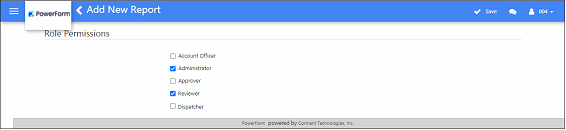
Under the Roles section, mark the checkbox of the roles that will have access to the report.
-
When done, click the Save button on the menu bar.
The roles marked under the Role Permission screen should have the permission to the Standard Reports feature to be able to display the Standard Reports screen. This feature is granted to a role during Roles creation. If this feature has not been granted to the role, see the topic ‘How to Give a Role Permission to Permission to Generate Standard Reports ’. Skip the section if configuration has already been made for the role to use Standard Reports.