
|
|
How to Use SQL Query to Create a Custom Report
Use SQL statements to query the database directly to create custom reports.
To create a custom report using SQL query:
-
Click the Menu button on the menu bar and click Custom Reports.
-
In the Custom Reports screen, click the New Custom Report button.

-
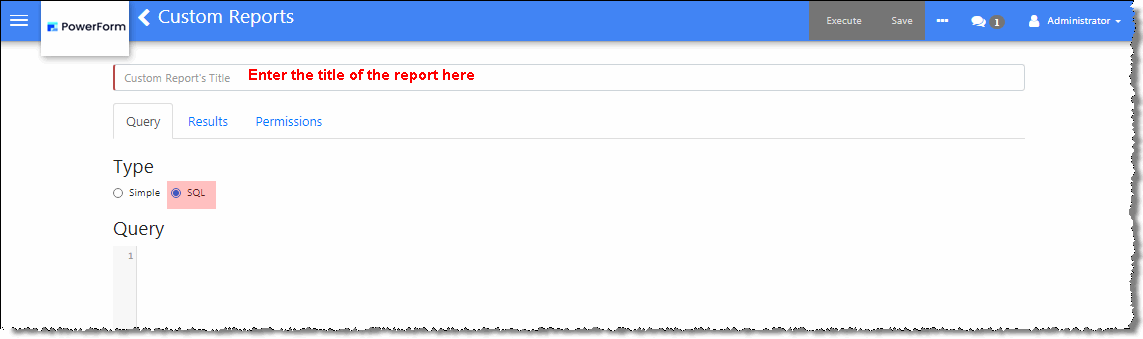
In the Custom Report's Title field, enter the title of the report.
-
Under Type, click the SQL button.
-
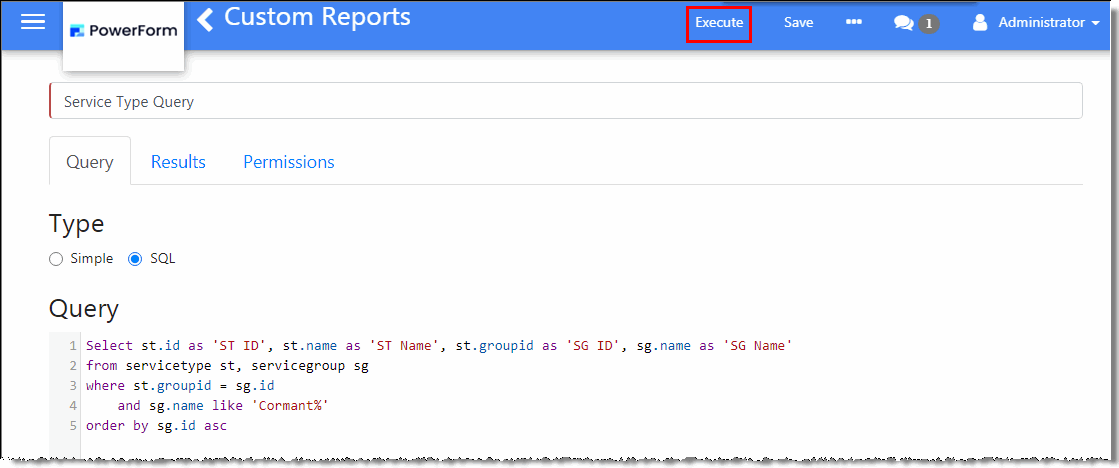
Under Query, write the SQL statement.
-
When done, test the written query by clicking the Execute button on the menu bar.
-
When done, test the written query by clicking the Execute button on the menu bar.
-
If there are errors in the SQL statement, the request becomes invalid. Errors in the statement will be listed. Any errors must be corrected first before the custom report can be generated.

-
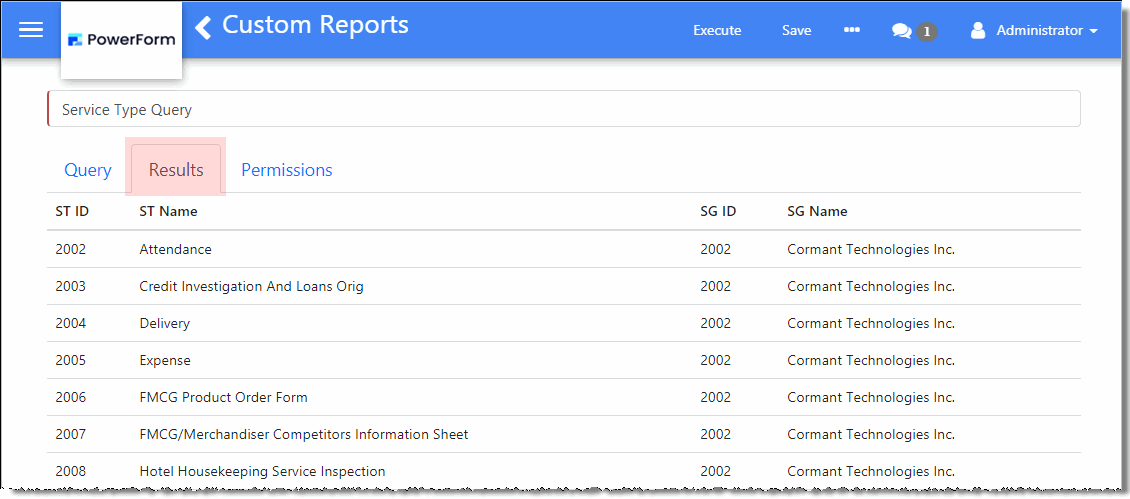
If there are no errors in the SQL statement, results will be displayed in the Results tab.
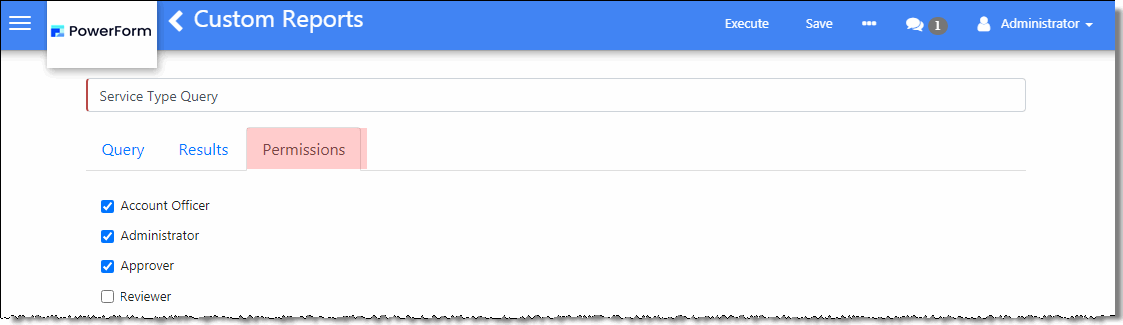
 8. Next, set the permission to the report. Click the Permissions tab. Mark the Roles that will have access to the report.
 8. When done, click the Save button on the menu bar.